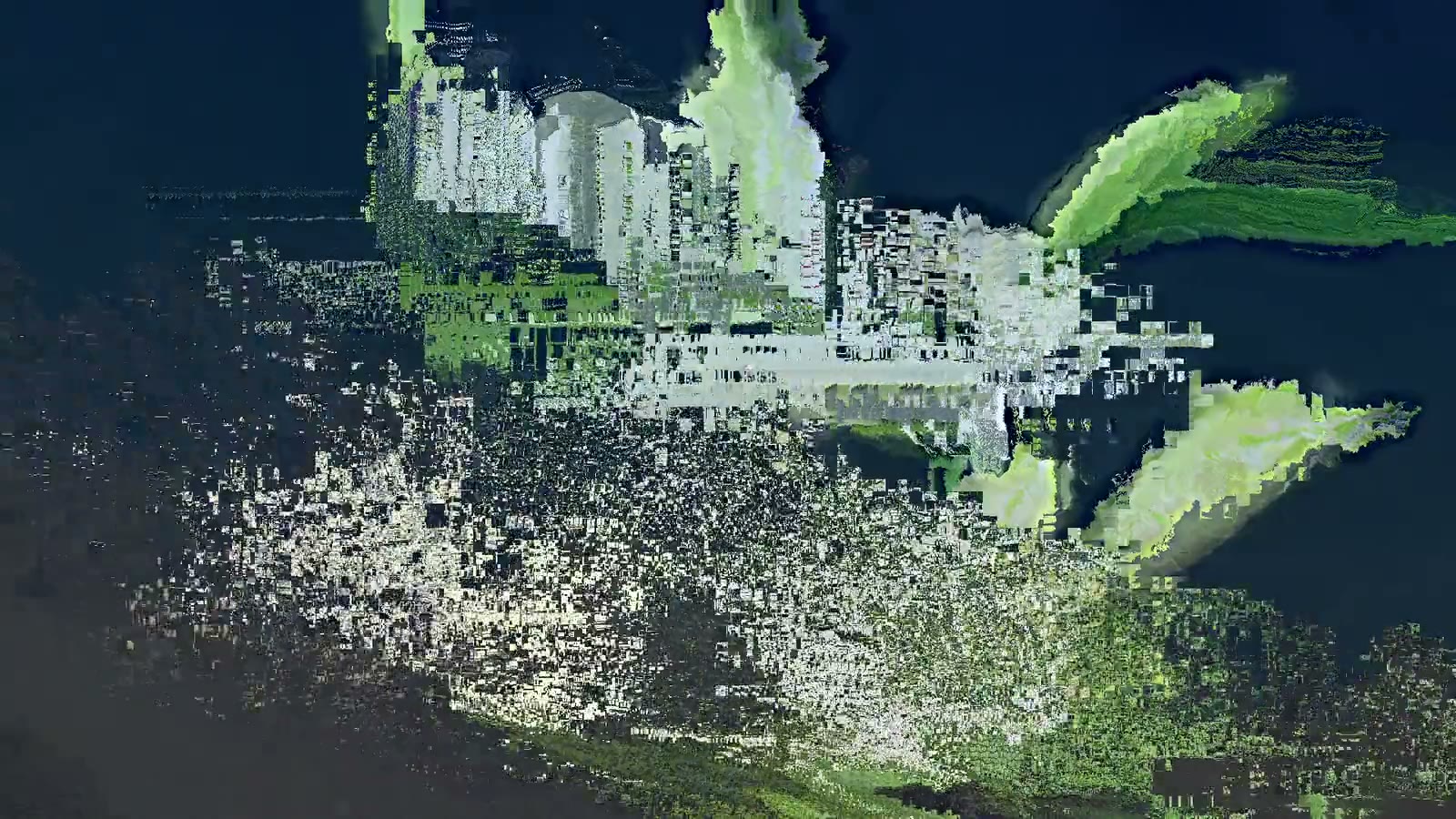
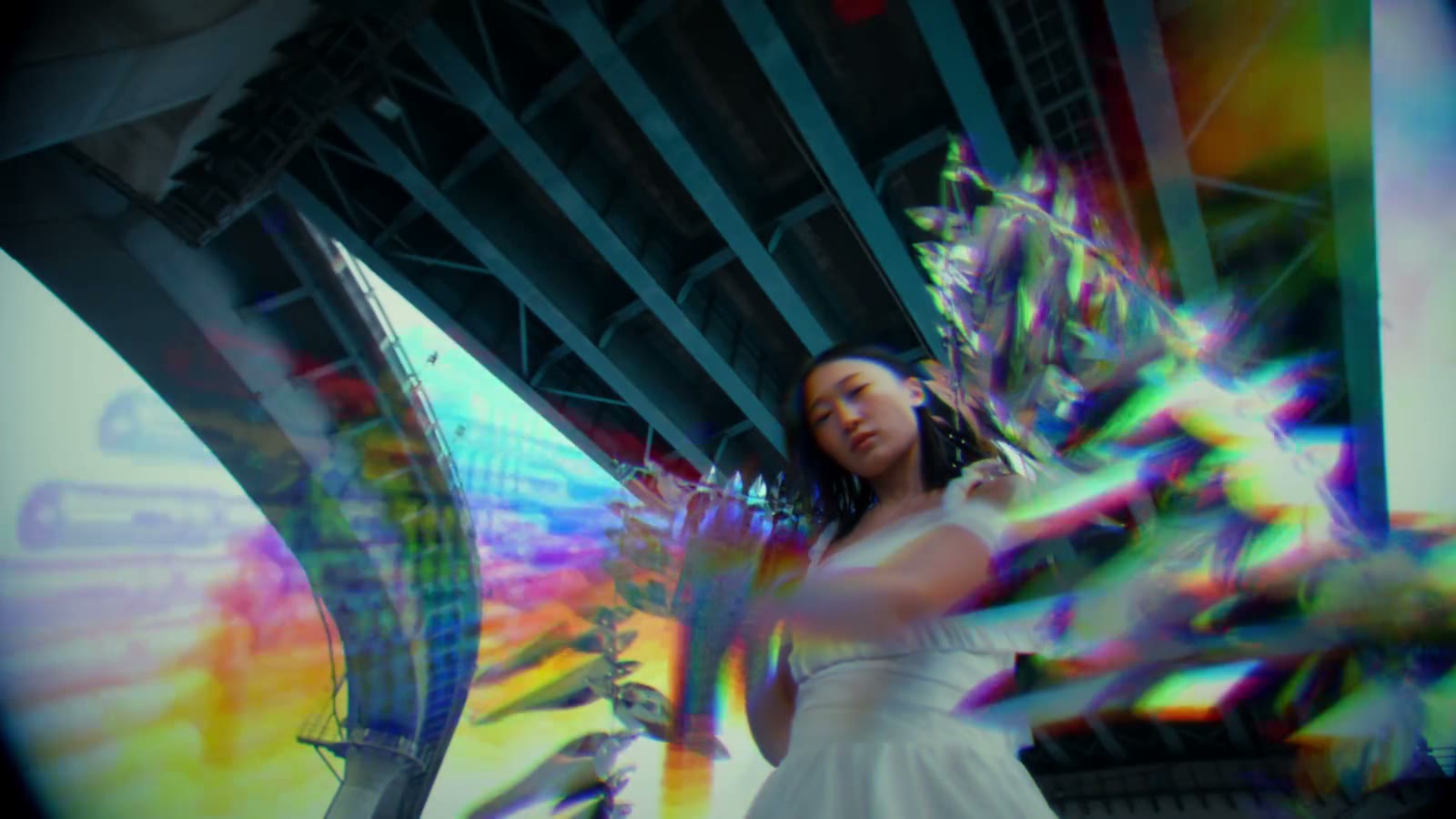
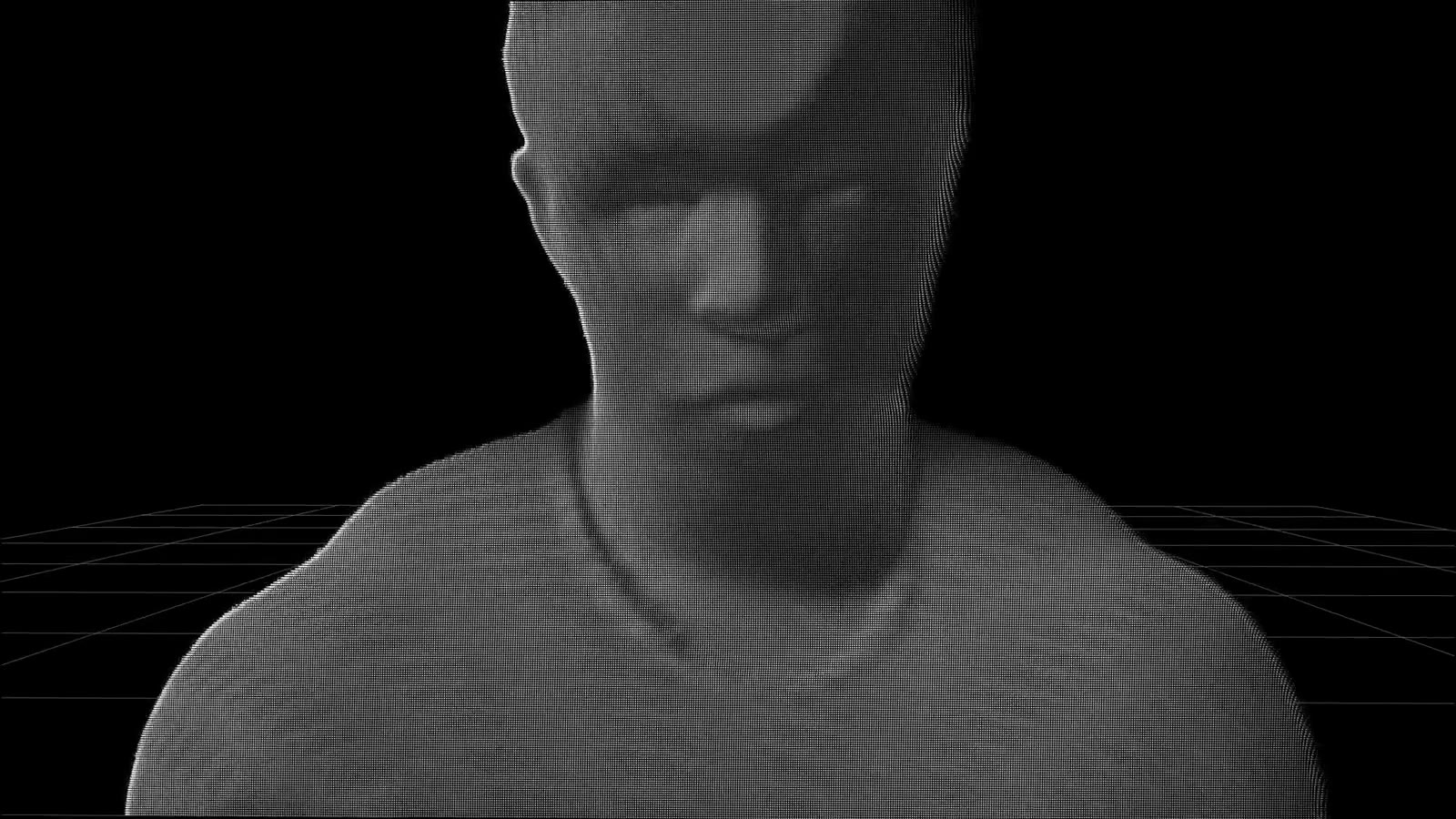
Put TRACE on the clip
On the Color page, add a node to the clip, open Effects and drag TRACE from Paperwolf Studio onto the node. Press Analyse / Resume Clip to track the clip once and keep the result, or play the clip and TRACE tracks it as it goes.
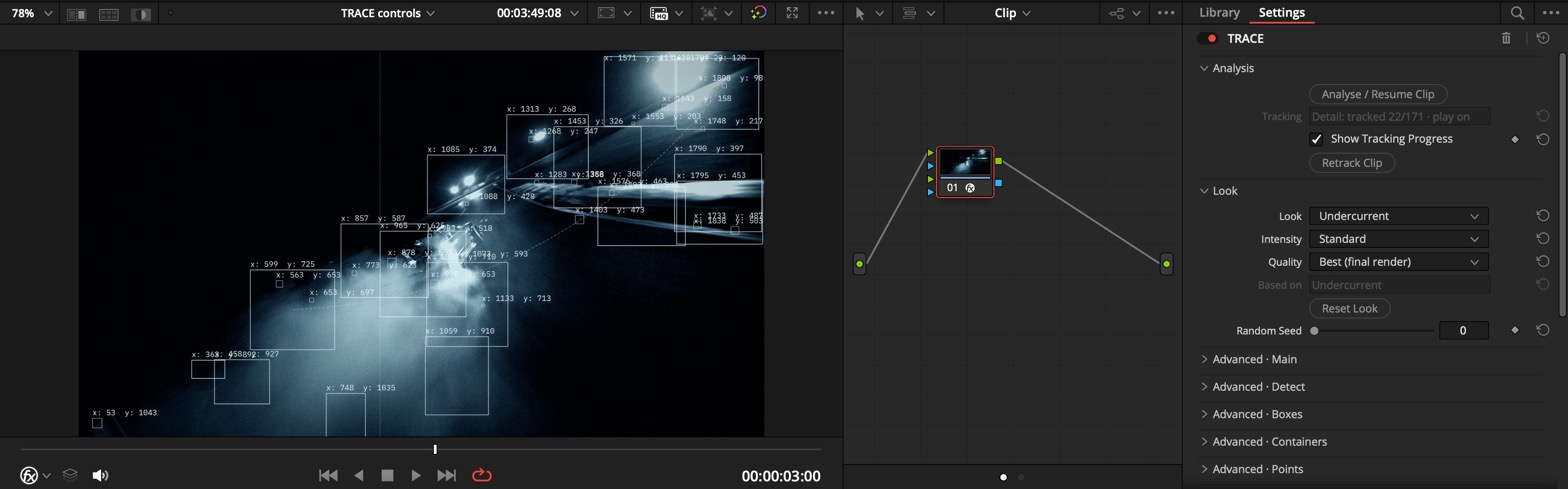
Pick a look
The Look menu has twenty looks. A look sets how the tracking is drawn and never what is tracked, so you can change it after the clip has been analysed.


What it tracks
The examples start from Lens Arcs: thin boxes, their coordinates and a few dashed arcs on the untouched picture. They follow one colour. Track is on Hue key and Key Color is the orange of the lamps along the track. Everything about detection is in Advanced · Detect.
Track

What the boxes follow. There are eleven modes: Detail / edges finds the texture of the subject, Bright areas and Dark areas find light and shadow, Motion finds what moves, Color key and Hue key find one colour, and Matte input follows a mask.
Hue Tolerance

How far a colour can be from Key Color and still count. Narrow, only the lamps pass. Wider, the smoke lit by the car's tail lights joins them.
Threshold

How strong the match has to be before a part of the picture becomes a blob. With Adaptive Threshold on it keeps a share of the frame instead, so a dark shot and a bright one give a similar number of boxes.
Min Blob Size

Blobs smaller than this are dropped. The value is a fraction of the frame's width, so 0.08 leaves only what fills a good part of the picture.
Merge Nearby

Joins blobs that sit close to each other into one box. At 0 every lamp is its own box, at 5 a row of lamps becomes one.
The boxes
Advanced · Boxes draws them.
Max Boxes

How many boxes the frame can hold. The strongest blobs get theirs first.
Style

The shape of every box, from a plain outline to brackets, a target or a circle. The example has a thermal picture inside the boxes, and it takes the shape with it.
Corner Radius

Rounds the corners until the short side of the box is a half circle.
Padding

The space between a blob and its box. Negative values pull the box inside the blob.
Thickness

The weight of the line, from a hairline to a heavy frame.
Inside and outside the boxes
Advanced · Containers turns each box into a window. The picture inside it and the picture around it each get their own treatment, taken from the clip itself.
Inside

What the clip looks like inside every box: a heat map, a negative, a sepia negative, two colours of your choice, or black and white. Clean (no grade) is the eighth, for the opposite job below.
Inside Texture

Prints the tones inside the box as dots or lines, like a newspaper picture.
Outside

What happens around the boxes. Darken dims everything else. Dot matrix turns it into dots as big as the picture is bright there. With Inside on Clean (no grade) the boxes stay as shot.
The grade under it
Grade

In Advanced · Base. Fourteen grades for the picture under the boxes, from the untouched clip to thermal, blueprint or a soft negative. The example keeps Inside on Clean (no grade), so the graded world has windows of the original in it.
The text
Box Text

In Advanced · Labels. Type anything, and put a token in braces where a live value should go: {x} and {y} for the position, {w} and {h} for the size, {id} for the box's own number, {conf} and {pct} for a score, {frame} for the frame, {count} for how many boxes there are, {word} for one of your own words.
Label Echo

In Advanced · Animate. Ghost copies of each label trail below it, with numbers that drift.
Points and lines
Max Points

In Advanced · Points. Points mark single details of the picture, where boxes mark whole areas. Style has fourteen marks for them.
Connect

In Advanced · Links. Draws lines between the boxes and the points: a Chain from one to the next, each to its Nearest neighbours, all of them to one Hub, a Mesh of everything within a distance, or the Far pairs that Lens Arcs uses.
Curvature

Bends the links from straight lines into arcs, one way or the other.
Colour and glow
Palette

In Advanced · Palette. Gives each box a colour from five stops, by its rank, its id or its place in the frame, or changes it over time.
Glow

In Advanced · Main. A glow around everything TRACE draws.
FAQ
Does TRACE work in the free version of DaVinci Resolve?
Yes, in the free version and in Studio, on macOS. We use it on the Color page, on a node of its own, so it sits wherever you want it in the grade.
Can it follow one colour only?
Yes. Set Track to Color key or Hue key and pick the colour in Key Color. Every example on this page follows the orange of the lamps that way.
Can it follow one object?
Yes. In Advanced · Detect, set Select to One target (Pick) and put Pick on the object. It keeps its id for the whole clip.
Does changing the look lose the tracking?
No. A look never changes what is tracked, so the saved tracking stays valid while you try all twenty.
Can I keyframe the controls?
Yes. Every slider has a keyframe button on the Color page.
Get TRACE
TRACE has twenty looks and around 150 controls under them. The trial has every feature with a watermark and no time limit, so you can try it on your own footage first.