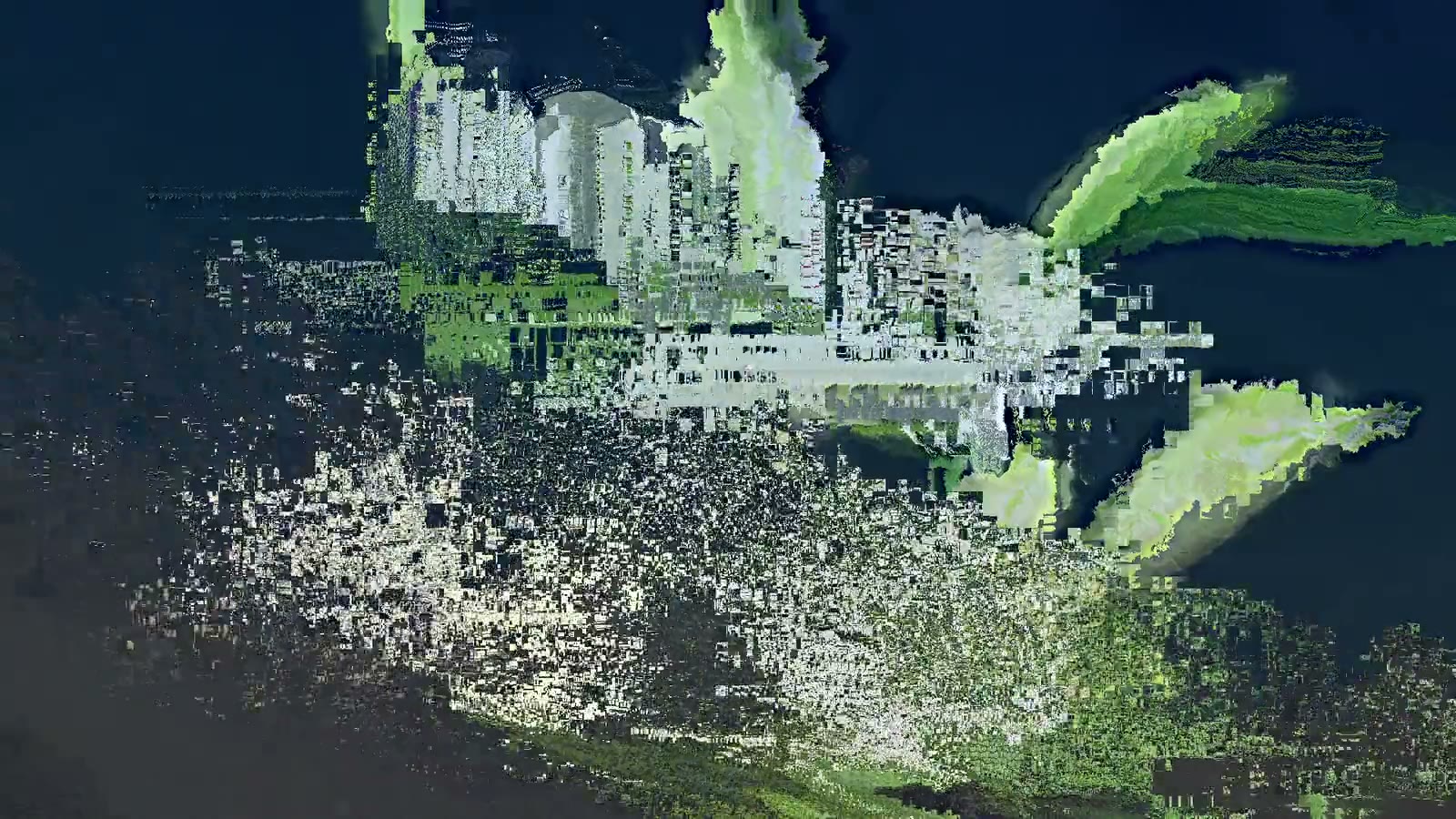
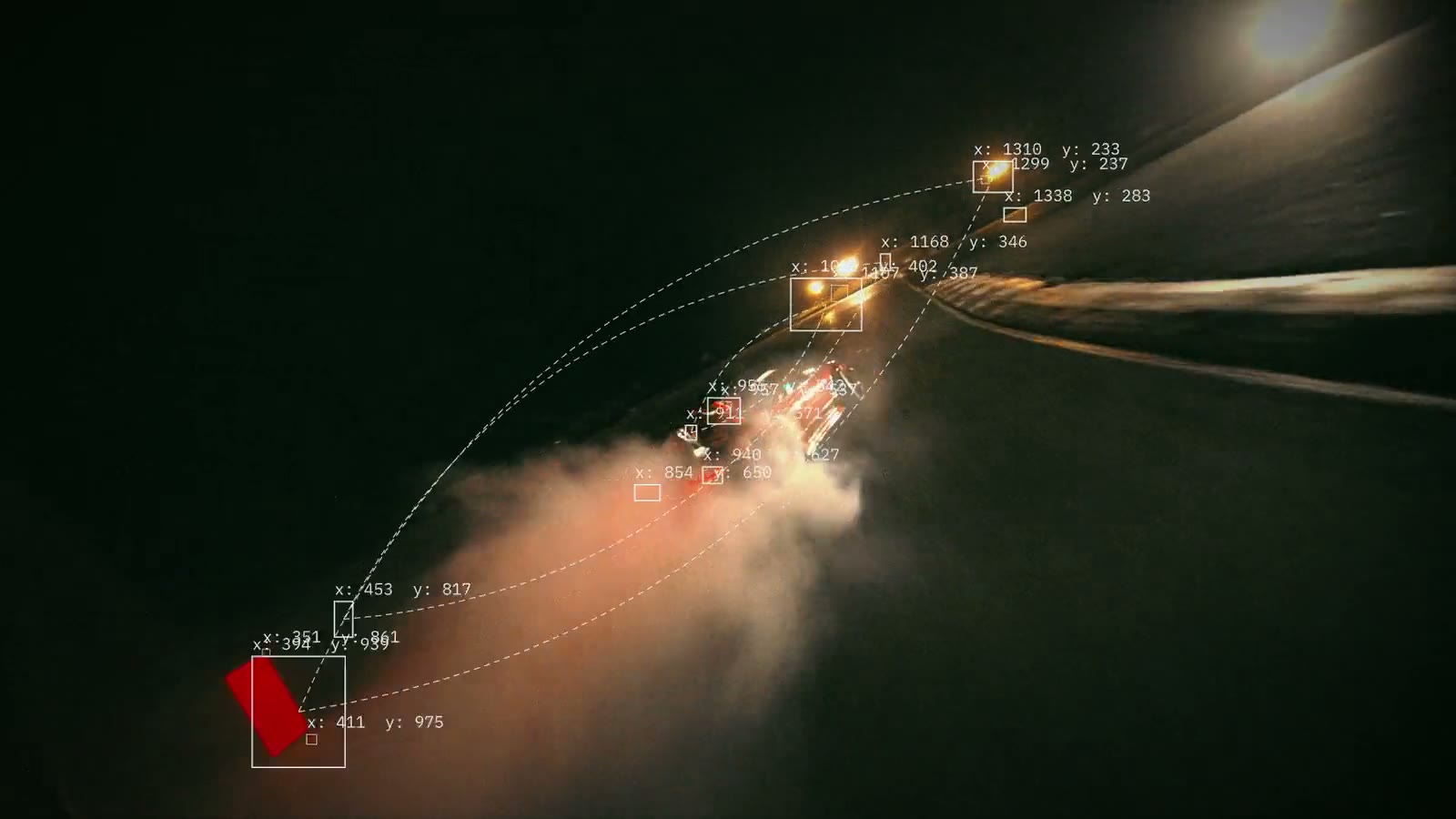
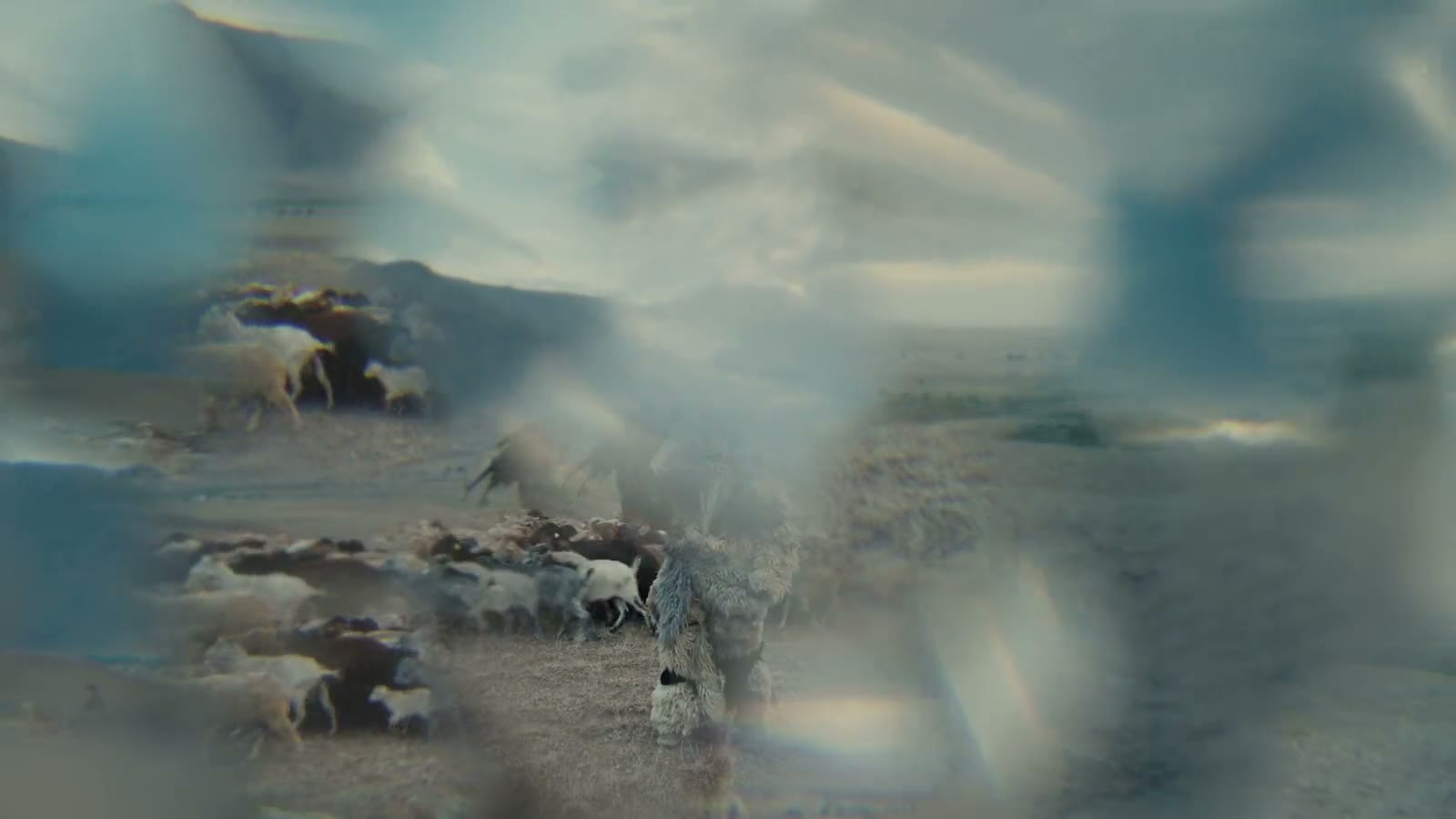
Put CHRONO on the clip
On the Color page, add a node to the clip, open Effects and drag CHRONO from Paperwolf Studio onto the node. CHRONO reads frames from before the current one, so leave a second of handles at the head of the clip or start the effect a little into it.
Pick a look
The Look menu has 23 looks. Each one belongs to a mode, and the mode decides which sections of settings appear below it.


The modes
Look

In Look. Eight looks, one from each family: echoes, slit-scan, time displacement, motion extraction, stutter, time blocks, chronophotography and strip scan.
Intensity

Every look comes in three strengths. On an echo look that means more echoes, on a slit-scan it means reaching further back in time.
Echoes and trails
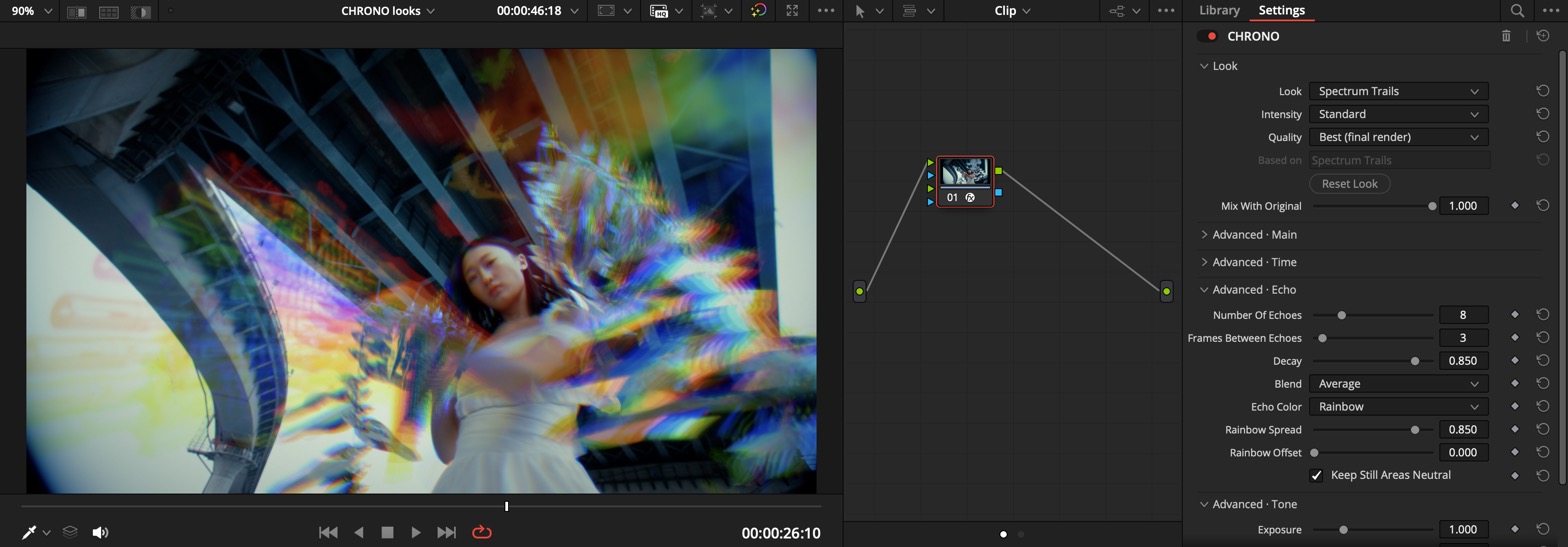
These examples start from Spectrum Trails: the current frame plus its echoes in rainbow colours, where whatever stands still keeps its own colour.
Number Of Echoes

In Advanced · Echo. How many earlier moments are laid over the current frame.
Frames Between Echoes

The gap in time from one echo to the next. A small gap gives a smooth smear, a large one gives separate copies of the subject.
Decay

How quickly the echoes fade. At 1 the oldest echo is as strong as the newest.
Blend

How the echoes are combined. Lighten suits a bright subject on a dark background, Darken a dark subject on a light one.
Echo Color

The colour each echo takes. RGB split puts red on now and green and blue on earlier moments, which is the Harris shutter.
Rainbow Spread

How much of the spectrum the echoes run through.
Slit-scan
These examples start from Horizon Warp: the horizon line is now, and towards the top and the bottom the frame reaches back in time, so everything that moves bends and streaks.
Time Depth

In Advanced · Main. How far back in time the far edge of the scan reaches.
Scan Shape

In Advanced · Scan. The direction time runs across the frame: down the rows, across the columns, at any angle, in rings from a centre, or as a clock sweep.
Angle

With Scan Shape on Angle, the direction of the scan.
Wobble

Bends the lines of the scan into waves, so time ripples across the frame.
Repeat

Runs the scan several times across the frame.
Time displacement
Displace By

In Advanced · Scan. With Light Lag the picture itself sets the delay of each pixel: the bright parts fall behind the dark ones. This menu picks what does the delaying.
Map Softness

Softens the map that sets the delay, from hard edges between moments to a liquid blend.
Strip scan
Finish Line is a photo-finish camera: one slit of every frame, laid side by side. Whatever crosses the slit is drawn out over time, and what stands still becomes a streak.
Strip Direction

In Advanced · Scan. The edge where the newest moment arrives.
Scan Speed

How far the strip moves each frame. A slow scan reaches further back in time and stretches what crosses the slit.
Slit Position

Where in the frame the slit sits.
Motion extraction
Style

In Advanced · Motion. The frame is compared with an earlier one, and only what changed is kept. The style decides how it is shown.
Gain

How strongly the difference is amplified. Raise it for subtle motion.
Delay

How far back the frame it is compared with lies. A longer delay catches slower movement.
Stutter
Hold Every

In Advanced · Glitch. Holds each frame for this many frames, like step-printed film.
Repeat Chance

How often a short segment of the clip plays again. Reverse Chance and Freeze Chance do the same for reversed segments and freezes.
Ghost Of Real Time

Lays the clip at its real speed faintly over the stutter.
Time blocks
Block Layout

In Advanced · Glitch. Joiner cuts the frame into prints and gives each one its own moment.
Block Size

The size of one print.
Displaced Blocks

The share of prints that show another moment. The rest show now.
Chronophotography
Layout

In Advanced · Chrono. A grid sheet lays the moments out side by side. Stacked exposures put them all in one frame.
Exposures

How many moments are shown.
Frames Between Exposures

The time from one exposure to the next. With Fixed Exposure Times (strobe) on, the copies stay put while the subject moves on, like a stroboscope.
Finish
Grain

In Advanced · Tone, next to exposure, contrast, saturation, tint and vignette.
Mix With Original

In Look. Blends the effect back into the untouched clip.
FAQ
Does CHRONO work in the free version of DaVinci Resolve?
Yes, in the free version and in Studio, on macOS.
Why does nothing happen on my shot?
Most modes need motion. On a locked-off shot where nothing moves, echoes, motion extraction and slit-scan stay close to the source. They work best when a subject moves against a still background.
Why is the start of my clip different?
CHRONO needs frames from before the current one, and at the head of a clip they do not exist yet. Leave a second of handles, or start the effect a little into the clip.
Does scrubbing show the same picture as the final render?
Yes. Each frame is computed from the frames it needs, so scrubbing, rendering out of order and the final render all match.
Can I keyframe the controls?
Yes. Every slider has a keyframe button on the Color page.
Get CHRONO
CHRONO has 23 looks in nine modes and 89 controls under them. The trial has every feature with a watermark and no time limit, so you can try it on your own footage first.