Put FOUND on the clip
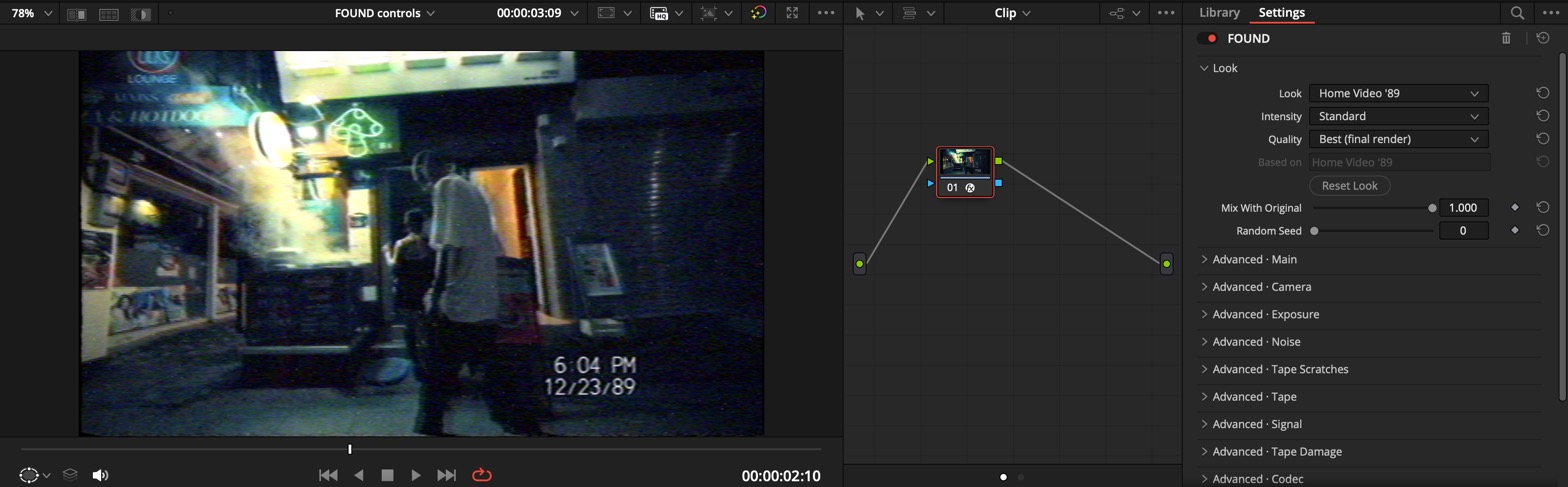
On the Color page, add a node to the clip, open Effects and drag FOUND from Paperwolf Studio onto the node. Its settings open next to the node graph.
Pick a camera
The Look menu at the top has fifteen cameras, and each one sets every control below it. Change anything afterwards and Based on shows the look's name with "(modified)" after it.


How worn it is
The examples start from Home Video '89. The first control is in Advanced · Main.
Damage

It scales all the wear of the tape at once, from a clean first recording at 0 to a tape that has been played for thirty years at 2.
The tape
Advanced · Tape is the cassette and the VCR that played it.
Set Tape Format

Fills the section with the measured values of a real format, so it is the quickest way to move between VHS, S-VHS, 8 mm and broadcast tape. VHS keeps about 240 lines of detail and only 30 of colour, which is why colour on VHS looks painted on. Change any value below it and the menu says Custom.
Luma Resolution

How much detail the tape keeps, in TV lines per picture height. Below 100 it stops looking like a format and starts looking like a copy of a copy.
Chroma Delay

On tape the colour travels on its own signal and arrives late, so it slides to the right of every edge. The value is in pixels of a 1080p picture; negative values push it the other way.
Generation

Every dub records the playback of the previous one, so softness, colour delay and noise add up. Generation 3 is the tape somebody copied for the relatives.
Or a codec instead of a tape
From the late nineties the picture went into a chip instead of onto a tape. In Advanced · Codec, turn Tape Stage off and Digital Codec Stage on.
Set Codec Format

Works like the tape menu: each format sets the recording size, the compression and the frame rate together. The 3GP phone records 176×144 and every pixel of it gets upscaled to your timeline.
Quality

The JPEG-style quality of the compression. The blocks are real 8×8 DCT blocks computed at the camera's own resolution, so they sit on the camera's pixel grid, not on your timeline's.
The camera
Advanced · Camera is everything before the recording: the lens, the sensor and the hand holding it.
Sensor

CCD smears bright lights into vertical streaks, CMOS bends when the camera moves, night mode lets the infrared in, and the tube drags trails behind highlights.
Light Source Strength

How bright the lights in the shot were to the sensor. A real lamp was far brighter than the white of your clip, so this decides how hard the lamps smear and bloom.
Chromatic Aberration

A cheap zoom lens splitting the colours towards the corners, in pixels of a 1080p picture.
Handheld Shake

A small, tired hand. Rolling Shutter bends the picture on every jolt.
Exposure and colour
Camcorders exposed and white-balanced on their own, and usually a little wrong. Advanced · Exposure has the automatic controls and the manual ones.
Colour Temperature

Slides the white balance from cool to warm. A camcorder was often left on the lamp setting and taken outside, or the other way round, and the whole tape came out a little blue or a little orange.
Exposure

Over-exposed, the camera's knee and white clip flatten the highlights the way small sensors did.
Wear and signal
The damage that comes from playing a tape: Advanced · Tape Scratches, Advanced · Signal and Advanced · Tape Damage.
Scratch Amount

The white horizontal dropouts of a worn tape. Scratch Length and Scratch Bursts decide whether they come as short flecks or as long streaks in clusters.
Tracking Error

The noisy band of a VCR that is not quite reading the tape. Tracking Band Position, Tracking Band Height and Tracking Band Roll place it and move it.
Ghost

The faint second image of an aerial signal arriving twice, for the tape that was recorded off the TV.
Crash Record

The tear at the start of every recording, when the camera was paused and started again. Cut Every repeats it.
Frame rate and motion
Advanced · Timing decides how motion was recorded.
Hold Each Frame

At 2 a 25 fps timeline shows 12.5 different pictures a second, like the movie mode of a digicam. At 8 it is a webcam on a bad connection.
Motion Trail

Slow sensors leave a trail behind movement, and the lights leave comet tails.
The date stamp
Advanced · OSD is where most camcorder edits go wrong, because the date is usually a clean font laid on top.
Text Is

Decides where in the chain the text enters the picture. Recorded by the camera goes through the tape with the picture and smears with it. Added at playback is the VCR's own text. Viewfinder LCD is the camera's screen. Crisp overlay is the clean version, for when you want it.
Font

Eight character generators traced from frame grabs of real cameras and decks: the thin and wide VHS generators, the rounded 8 mm and DV font, pixel, LCD dots, 7-segment, the bold time-lapse VCR and the condensed LCD.
Date Format

Fourteen orders, from JUL 4 1989 to 7/4/89 TUE, because cameras for different countries printed it differently. Year, month, day, hour and minute are set below, and the clock runs with the clip.
The TV
Advanced · Display is how the tape was watched. Leave it at 0 for a clean capture, or bring the TV in.
CRT Scanlines and Curvature

CRT Scanlines draw the lines of the tube, CRT Curvature bends the glass, and Phosphor Glow lets the bright parts bleed.
FAQ
Does FOUND work in the free version of DaVinci Resolve?
Yes, in the free version and in Studio, on macOS. We use it on the Color page, on a node of its own, so it sits wherever you want it in the grade.
Can I keyframe the controls?
Yes. Every slider has a keyframe button on the Color page.
Is FOUND a LUT?
No. A LUT changes colour, and colour is a small part of the look. FOUND renders at the camera's own resolution and frame rate, adds the sensor, the tape or codec and the display, and does it in that order.
Does it work on vertical clips?
Yes. On a 16:9 timeline, FOUND finds the vertical clip inside the frame and puts the whole look there, date stamp and exposure included.
Get FOUND
FOUND has fifteen cameras and around 140 controls under them. The trial has every feature with a watermark and no time limit, so you can try it on your own footage first.